> For the complete documentation index, see [llms.txt](https://docs.udara360.io/llms.txt). Markdown versions of documentation pages are available by appending `.md` to page URLs; this page is available as [Markdown](https://docs.udara360.io/core-features/reports/operational-reports/vat-and-wht-report.md).
# VAT & WHT Report
The VAT & WHT Report gives you a detailed record of all Value Added Tax and Withholding Tax deductions processed within Udara360. Use this report to monitor tax deductions across accounts and support your regulatory tax reporting requirements. This guide will walk you through accessing, filtering, and exporting the VAT & WHT Report.
## Accessing VAT & WHT Report
1. Log into the application using your credentials.
2. From the dashboard, navigate to **Reports** in the side menu.
3. Expand **Operational Reports** and Select **VAT & WHT Report** from the dropdown list
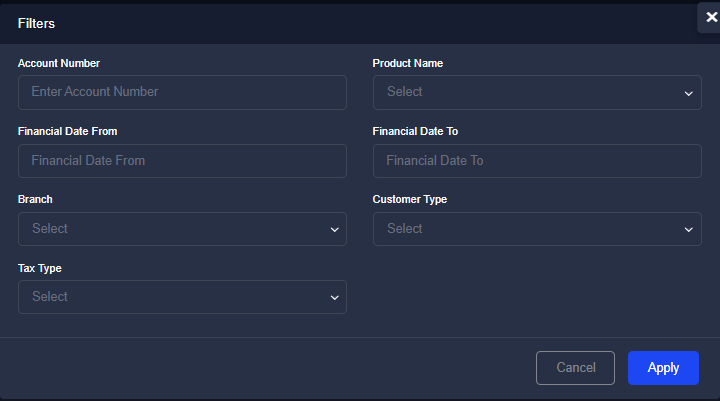
## Filtering the Report
1. Click the Filter button at the top right of the page
2. Enter your preferred filter criteria
3. Click Apply to display the filtered results
> :pushpin:Click Reset Filter to clear all applied filters and return to the full report.
## Exporting the Report
1. Click the Export button at the top of the page
2. Select your preferred format; CSV or Excel
3. The file will download automatically to your device