> For the complete documentation index, see [llms.txt](https://docs.udara360.io/llms.txt). Markdown versions of documentation pages are available by appending `.md` to page URLs; this page is available as [Markdown](https://docs.udara360.io/core-features/account/customer-account/overdraft.md).
# Overdraft
The Overdraft page lets you oversee and control customer account overdraft facilities. An overdraft is a credit line granted to account holders, allowing them to withdraw more than what is available in their accounts within the limits of the overdraft. This page allows you to monitor, modify, activate, and view overdraft accounts and track important details such as tenure, interest rates, and maturity dates.
This guide provides a complete overview of managing overdrafts within the system, including searching, adding, modifying, viewing, and activating overdrafts.
## Accessing the Overdraft Page
1. Log into the application using your credentials.
2. From the dashboard, navigate to **Accounts** in the side menu.
3. Select **Overdraft** from the Accounts dropdown list.
## Search Overdrafts
To quickly search the overdraft list, enter an account name in the **Search account name** field at the top of the list page.
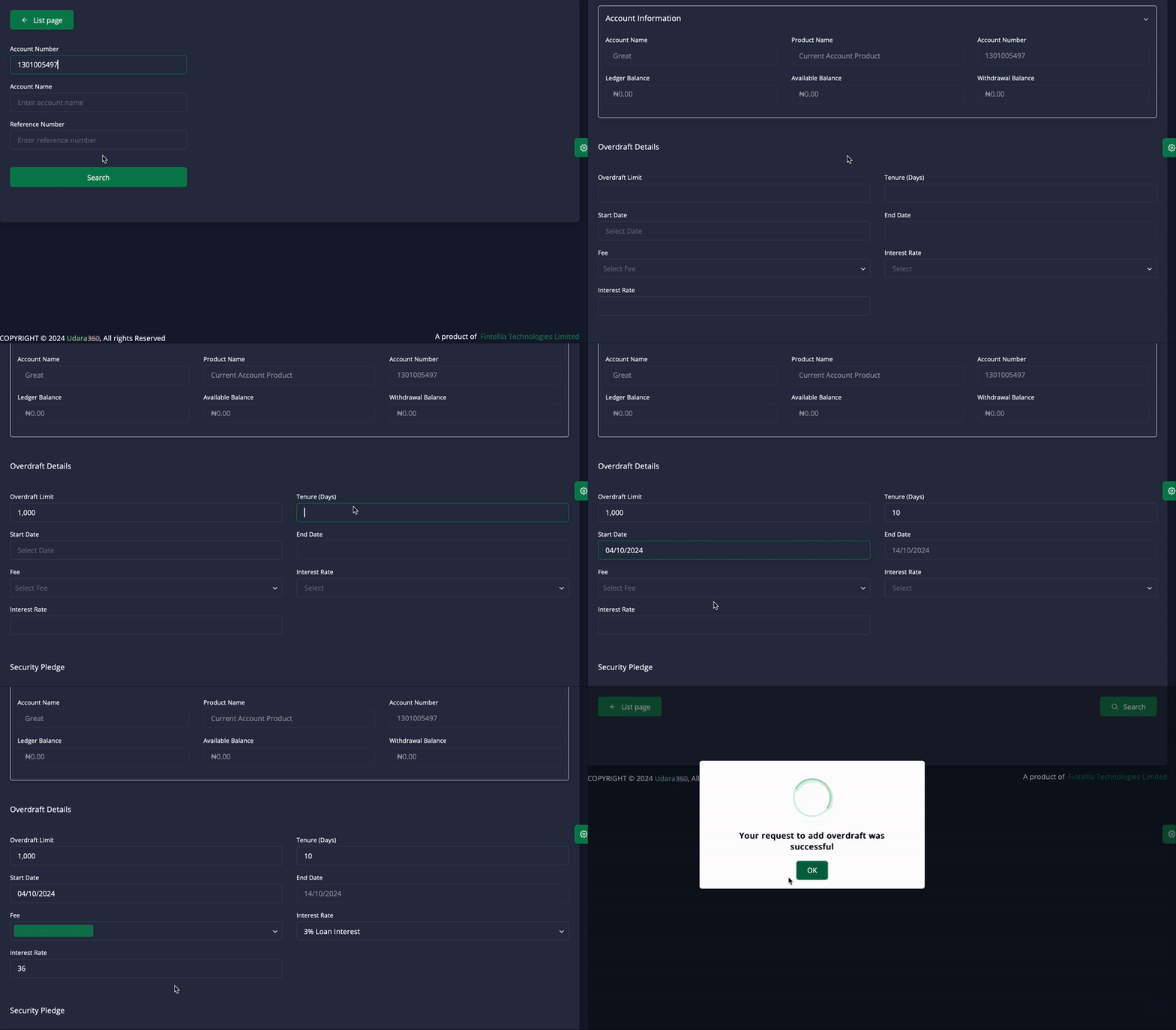
## Add a New Overdraft
To add a new overdraft:
1. Click the **Add** button at the top of the page.
2. Input the **Account Number**, **Account Name**, or **Reference Number**.
3. Click the **Search** button.
4. Select the desired row from the Search Result list.
5. Review the **Account Information** summary: Account Name, Product Name, Account Number, Ledger Balance, Available Balance, and Withdrawal Balance.
6. Under **Overdraft Details**, enter the following:
* **Overdraft Limit**: Enter the maximum overdraft amount.
* **Tenure (Days)**: Enter the overdraft's duration in days.
* **Start Date**: Select the overdraft's start date.
* **End Date**: Select the overdraft's end date.
* **Fee**: Select the applicable fee.
* **Interest Rate**: Select and/or enter the applicable interest rate.
7. Under **Security Pledge**, toggle **Any Security Pledge?** if the overdraft is secured, then enter:
* **Type of Security**: Select the type of security pledged.
* **Security Valuation**: Enter the value of the security.
* **Detailed Description**: Enter a description of the security (up to 150 characters).
8. Click **Save** to add the overdraft to the system.
9. Confirm the action by selecting **"Yes, I want to proceed."**
## View an Overdraft
1. In the Actions column, **click the three vertical dots (⋮)** next to the overdraft you wish to view.
2. Select **View** from the dropdown menu.
3. The Account Information and Overdraft Details are displayed in read-only form.
## Modify an Overdraft
To modify an existing overdraft:
1. In the Actions column, **click the three vertical dots (⋮)** next to the overdraft you wish to modify.
2. Select **Modify** from the dropdown menu.
3. Update the necessary details across **Overdraft Details** (Overdraft Limit, Tenure, Start Date, End Date, Fee, Interest Rate) and **Security Pledge** (Any Security Pledge?, Type of Security, Security Valuation, Detailed Description).
4. Click **Save** to apply the changes.
5. Confirm the action by selecting **"Yes, I want to proceed."**
#### The available action depends on the overdraft's current status:
| Status | Available Actions |
| -------- | ------------------------ |
| Active | Modify, View, Deactivate |
| Pending | Modify, View, Deactivate |
| Expired | View, Deactivate |
| Disabled | Modify, View, Activate |
## To deactivate an overdraft
1. In the Actions column, click the three vertical dots (⋮) next to the overdraft you wish to deactivate.
2. Select **Deactivate** from the dropdown menu.
3. Confirm the action by selecting **"Yes, I want to proceed."**
## To activate a disabled overdraft:
1. In the Actions column, **click the three vertical dots (⋮)** next to the overdraft you wish to activate.
2. Select **Activate** from the dropdown menu.
3. Confirm the action by selecting **"Yes, I want to proceed."**
## Filter Overdrafts
To filter the overdraft list by more specific criteria:
1. Click the **Filter** button.
2. Enter or select any combination of **Account Name**, **Account Number**, **Product**, and **Status** (Active, Disabled, Expired, Inactive, Pending).
3. Click **Apply** to view the matching results.
4. Click **Reset Filter** at any time to clear all applied filters and return to the full list.